How to Display Your Fundraising Campaign on Your DinScreen


How to Display Your Fundraising Campaign on Your DinScreen
By the Moonode team · Published on March 7, 2026
Your campaign is live. Donations are coming in. But did you know you can turn your prayer screen into a real-time fundraising tool — visible to every worshiper entering your mosque?
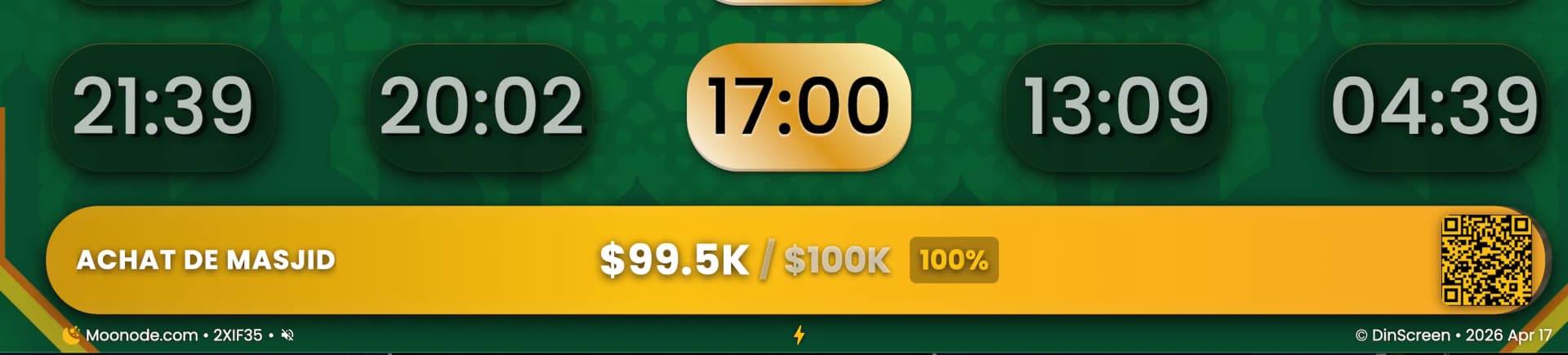
With DinScreen, your campaign displays directly at the bottom of the prayer times screen: campaign name, amount raised, goal, progress percentage, and a QR code that anyone can scan to donate immediately.
Here's how to activate it in 3 simple steps.
What Your Worshipers Will See on the Screen
At the bottom of your DinScreen, a dedicated bar permanently displays:
The name of your campaign
The amount raised in real time via Stripe
The financial goal and percentage achieved
A QR code scannable directly from the screen to donate in seconds
No need to announce the campaign over the microphone at every prayer. The screen speaks for you, continuously, 24/7.
Prerequisites Before You Start
Before linking your campaign to DinScreen, make sure:
✅ You have an active DinScreen registered in your dashboard
✅ Your campaign is approved and live (LIVE) from your page settings
If your campaign is not yet created, start by reading this guide.
Step 1 — Access Your DinScreen
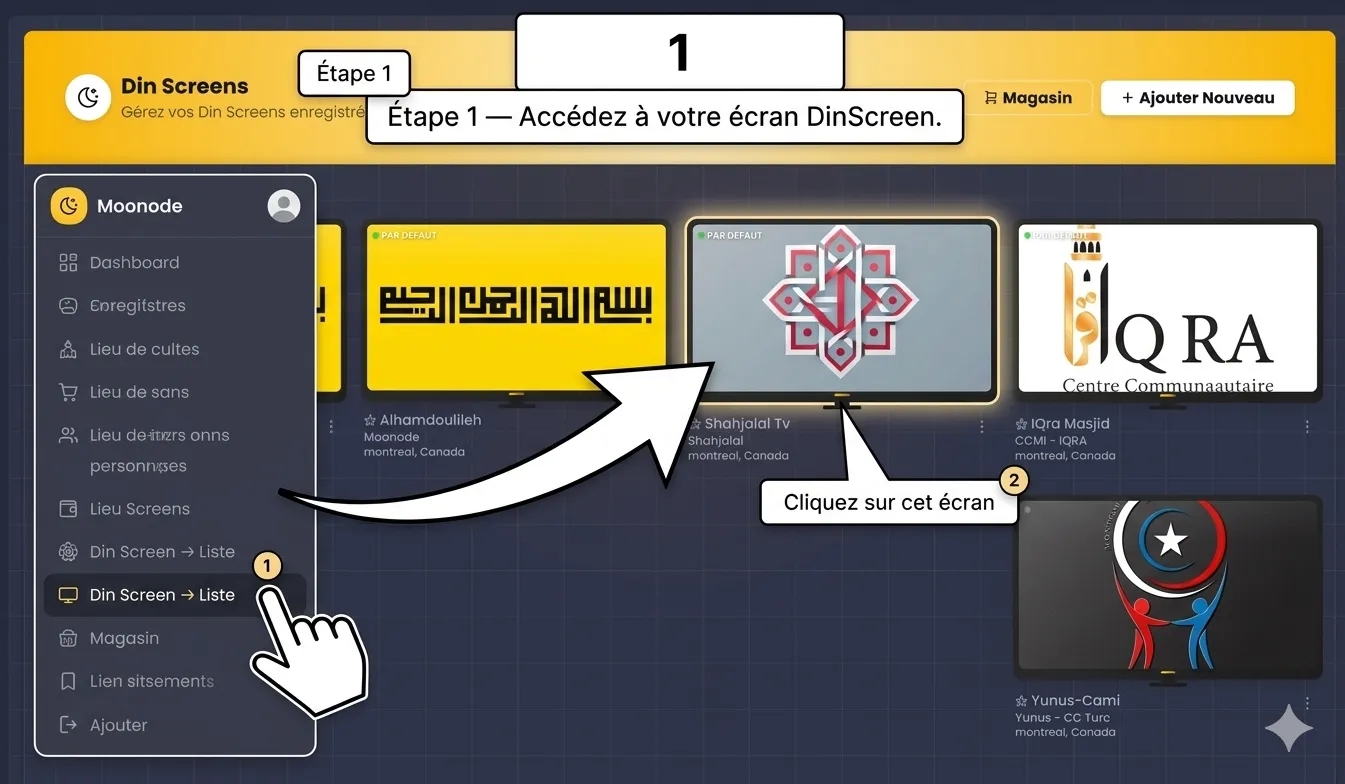
In your Moonode dashboard, click on Din Screen → List in the left menu.
You will see all your registered screens. Click on the screen where you want to display the campaign.
Step 2 — Open the Campaign Tab
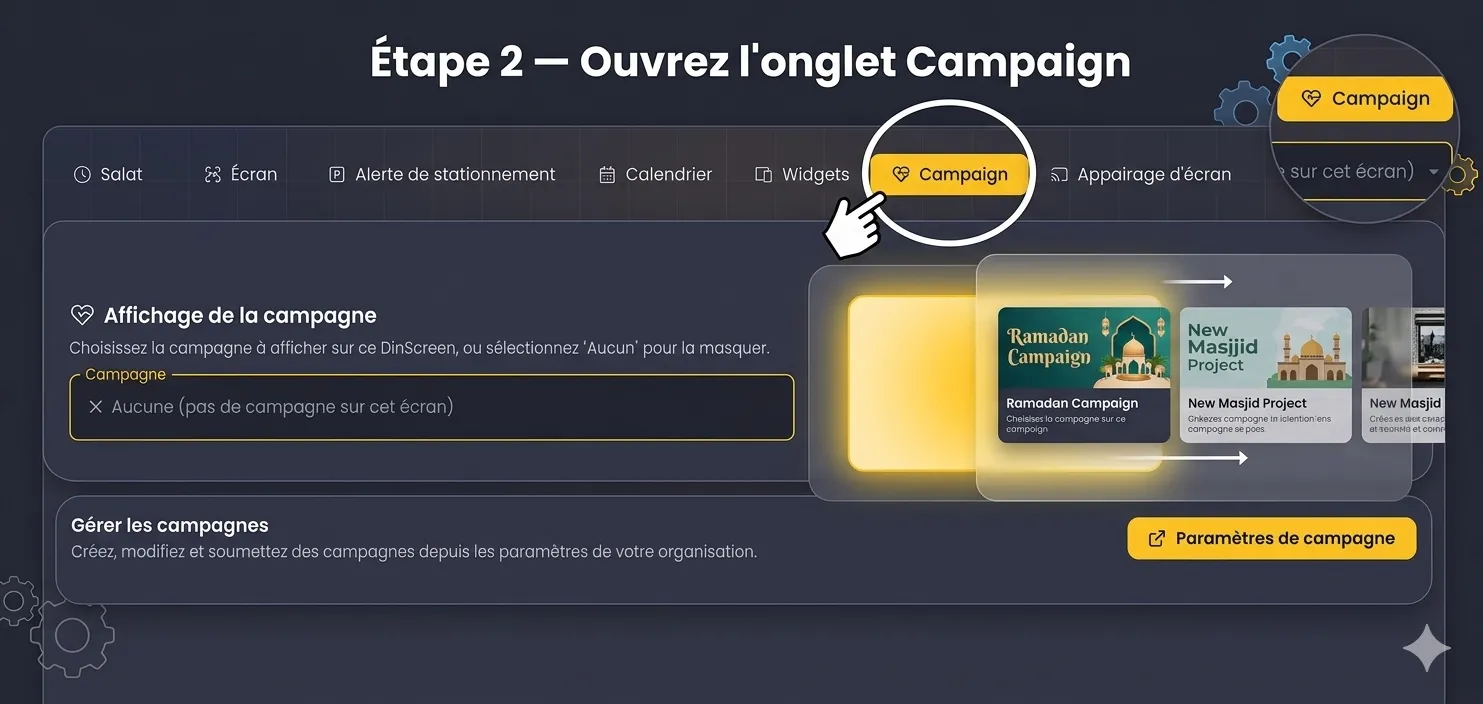
Once in your screen settings, click on the Campaign tab in the top navigation bar.
You will see the Campaign Display section with a dropdown menu. This is where you choose which campaign to display on this screen.

Step 3 — Select Your Campaign
Click on the dropdown menu. All your active and approved campaigns appear in the list.
Select the desired campaign — it will show a green Active badge to confirm it is live.
Once selected, the campaign bar immediately appears at the bottom of your DinScreen. That's it.
No screen restart required. The update is instant.
Disabling the Display
If you want to remove the campaign from the screen at any time, go back to the Campaign tab and select None (no campaign on this screen) from the dropdown menu. The bar disappears immediately.
One Screen, One Cause, One Community
Every worshiper who looks at the prayer times sees your campaign. Every person who takes out their phone to scan the QR code becomes a potential donor. You don't have to do anything else — DinScreen does the work for you.
Log in to your dashboard and activate the display now.
→ Access my DinScreen dashboard
Moonode is a platform dedicated to mosques and Muslim communities. Conceptualized with ❤️ from Montreal.
comments
Join the conversation
Download the Moonode app to comment, like and engage with blog posts.