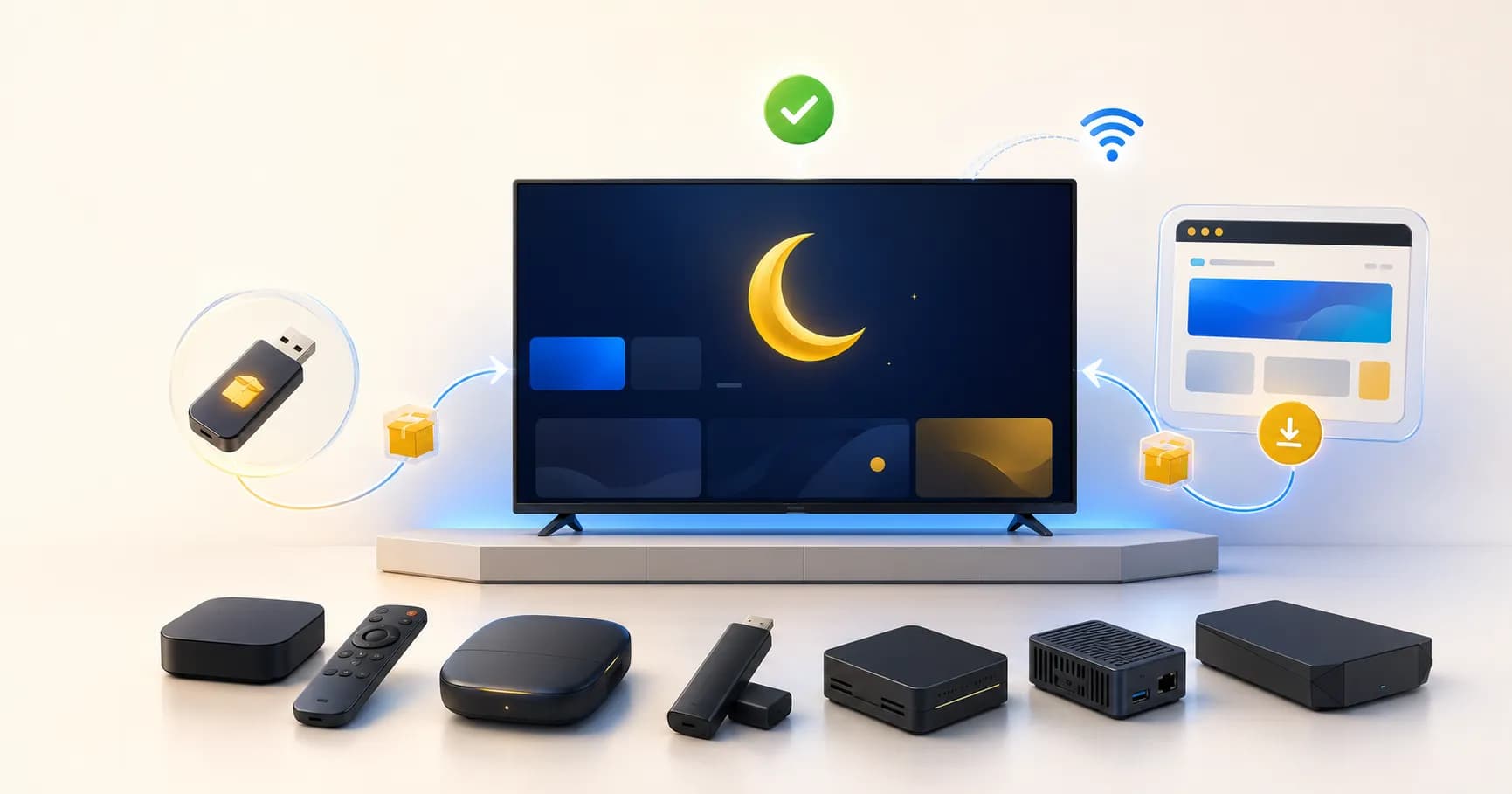
How to install Moonode on any Android TV box


This guide is for customers or field techs who want to run Moonode on an Android TV box they already own, instead of ordering one from us. It works on almost any Android TV / Android TV box, Fire TV Stick, or Android-based signage player — not just our official hardware.
You don't need a computer with special tools. You need:
The Android TV box, powered on and connected to WiFi or Ethernet
Its remote control
10–15 minutes
A USB flash drive or a web browser you can open on the box itself
Step 1 — Check it's actually Android
Go to Settings → Device (or "About") and look for an Android version number. If you see "Fire OS" instead of "Android," it's still Android underneath (Amazon's Fire TV is a fork), so this guide still works — skip to Step 3, since Fire TV boxes don't need Developer Options for a manual install.
If there's no Android version listed anywhere, it's not an Android device and this guide won't apply.
Step 2 — Turn on "install from unknown sources"
This is the one setting that lets an Android box install an app that didn't come from the Google Play Store or Amazon Appstore.
Most Android TV boxes: Settings → Apps → Special app access → Install unknown apps → pick your file manager (or browser) → toggle Allow from this source.
Fire TV: Settings → My Fire TV → Developer options → Apps from Unknown Sources → On. (If you don't see Developer options, go to My Fire TV → About, click your device's serial number/build box 7 times — it'll say "No need, you are already a developer!" and the menu will appear.)
You do not need full Developer Options / USB debugging for this — that's only for advanced troubleshooting, not a normal install.
Heads up: a small number of cheap/no-name boxes (usually ones bundled with a specific IPTV or signage app) deliberately hide this setting or block sideloaded apps from ever becoming the home screen. If "Install unknown apps" doesn't exist anywhere in Settings, or the box refuses to let a sideloaded app become HOME even after installing, that unit is locked down by the manufacturer and this method won't fully work on it — that's a hardware/vendor limitation, not something you did wrong.
Step 3 — Get the Moonode APK onto the box
Pick whichever is easier for you:
Option A — USB flash drive (most reliable, works with zero typing on the remote)
On any computer, download the current Moonode launcher APK: moonode-launcher-36.apk (this is the current build as of this writing — if it's been a while, ask your Moonode contact for the latest link before flashing new hardware)
Copy the
.apkfile onto a USB flash drive (just drag it into the root of the drive — no folder needed).Plug the flash drive into the Android box's USB port.
Open the box's file manager app (most boxes have one preinstalled, often called "File Manager," "Explorer," or similar — check the app drawer).
Navigate to the USB drive, find the
.apkfile, and select it.Tap Install when prompted, then Open once it finishes.
Option B — Download straight on the box (no flash drive needed)
Open a browser app on the box (if one isn't installed, most boxes have "Downloader" or a browser available from the Play Store / Amazon Appstore).
Type in the direct APK download link:
https://general.eu-central-1.linodeobjects.com/basics/platforms/launcher/moonode-launcher-36.apk(this link changes with every release — check with your Moonode contact if it's been more than a few weeks so you don't flash an old build).Once it downloads, open it from the browser's download notification, or from the file manager's Downloads folder.
Tap Install, then Open.
Option C — ADB install
If you're comfortable with a terminal and the box supports Developer Options, this is the fastest way to do a batch of boxes without touching each remote.
On the box: Settings → Device (or "About") → click the Build number 7 times to unlock Developer Options, then go into Developer Options and turn on USB debugging (and Network debugging / Wireless debugging if you want to install over WiFi instead of a USB cable).
On your computer, install Android Platform Tools if you don't already have
adb.Connect:
USB: plug a USB-A-to-USB-A/OTG cable between computer and box, then
adb devicesand accept the RSA-key prompt that appears on the TV.Network:
adb connect <box-ip>:5555(find the IP under Settings → Network).
Install the APK:
adb install -r moonode-launcher-36.apkLaunch it once so it isn't left in Android's "stopped" state (which would block auto-start on the next boot):
adb shell am start -n com.moonode.launcher/.MainActivitySet it as the default Home app without touching the remote at all:
adb shell cmd package set-home-activity com.moonode.launcher/.MainActivity(Not every Android build supports this command — if it errors out, fall back to pressing HOME on the remote per Step 4 below.)
Start Moonode as Default
# make Moonode reclaim the screen on Fire TV (the part Option C doesn't do)
adb shell pm grant com.moonode.launcher android.permission.WRITE_SECURE_SETTINGS
adb shell appops set com.moonode.launcher REQUEST_INSTALL_PACKAGES allow
adb shell settings put secure enabled_accessibility_services com.moonode.launcher/com.moonode.launcher.kiosk.HomeGuardService
adb shell settings put secure accessibility_enabled 1
# stop Fire OS from updating itself (an Amazon update undoes the lines above)
adb shell pm suspend com.amazon.device.software.ota
adb shell pm suspend com.amazon.device.software.ota.override
adb shell pm suspend com.amazon.tv.forcedotaupdater.v2
adb shell appops set com.amazon.device.software.ota SYSTEM_ALERT_WINDOW deny
adb shell appops set com.amazon.device.software.ota.override SYSTEM_ALERT_WINDOW deny
# start it once more, then reboot to prove it comes back by itself
adb shell am start -n com.moonode.launcher/.MainActivity
adb reboot
Note: none of this requires root. If your fleet is large enough that per-box ADB access is worth setting up permanently, ask us about a fuller provisioning script — we already have one for this internally.
Step 4 — Make Moonode the home screen
After installing, press the HOME button on the remote once. Android will usually pop up a chooser asking which app to use as Home — pick Moonode and choose Always (not "Just once").
If no chooser appears and the box's original launcher opens instead:
Go to Settings → Apps → Default apps → Home app (wording varies by device) and select Moonode from the list.
If Moonode doesn't show up in that list at all, the box may not allow a sideloaded app to become Home (see the callout in Step 2) — in that case, contact us and we'll help figure out a workaround for that specific model.
Step 5 — Confirm it's working
Reboot the box (unplug/replug power, or Settings → Restart).
After it boots, Moonode should come up automatically without you touching the remote.
If it boots back into the original launcher, the "clear stopped state" step didn't take — open Moonode manually from the app drawer once, then reboot again.
That's it — the box will now pull its content and stay updated automatically like any other Moonode device.
Troubleshooting
Symptom | Likely cause | Fix |
|---|---|---|
"Install blocked" popup | Unknown-sources permission not on for the app you're installing from | Recheck Step 2, make sure you allowed the specific app (browser or file manager) you're using |
App installs but disappears / won't open | Box killed it as unused before first launch | Open it once manually from the app drawer, don't just leave it installed |
Moonode never appears in "Default apps → Home" list | Box treats sideloaded apps differently for security (common on some no-name boxes) | Try pressing the physical HOME button right after install to trigger the chooser before the original launcher grabs it back; if that fails, this box likely can't be used as Home without vendor-level changes |
Update popup appears later but nothing happens when you wait | Normal on a sideloaded (non-privileged) install — the confirm tap has to be manual on this class of device | Just tap "Install"/"Update" on the popup when it shows up; it won't auto-dismiss unless a technician has configured that for your specific device |
No Developer Options / no "Install unknown apps" setting anywhere | Box is locked down by the manufacturer | This is a hardware limitation — some cheap boxes are built this way on purpose. Contact us before buying more of that specific model |
Why our own boxes work a little differently
If you buy hardware directly from Moonode, we preload the launcher as a privileged system app before shipping. That gets it two extra abilities a sideloaded install can't have: it silently becomes the home screen with no chooser popup, and — on the right hardware — it can update itself completely silently with no confirm tap at all. Sideloading with this guide gets you a fully working Moonode player either way; you just handle the one-time Home picker step yourself, and OTA updates will show a confirm popup instead of being fully silent.
comments
Join the conversation
Download the Moonode app to comment, like and engage with blog posts.